JavaFX Tooltip
Jakob Jenkov |
The JavaFX Tooltip class (javafx.scene.control.Tooltip) can display a small popup with
explanatory text when the user hovers the mouse over a JavaFX control. A Tooltip is a well-known feature of
modern desktop and web GUIs. A Tooltip is useful to provide extra help text in GUIs where there is not space enough
available to have an explanatory text visible all the time, e.g. in the button text.
Creating a Tooltip Instance
To use the JavaFX Tooltip class you must create a Tooltip instance. Here is an example
of creating a JavaFX Tooltip instance:
Tooltip tooltip1 = new Tooltip("Creates a new file");
The text passed as parameter to the Tooltip constructor is the text displayed when the Tooltip
is visible.
Adding a Tooltip to a JavaFX Component
Once you have created a Tooltip instance you need to add it to a JavaFX component to make it active.
Here is an example of adding a Tooltip instance to a JavaFX Button:
Tooltip tooltip1 = new Tooltip("Creates a new file");

Button button1 = new Button("New");
button1.setTooltip(tooltip1);
Notice the call to Button's setTooltip() method. This is what causes the Tooltip
instance to be visible when the mouse is hovered over the button.
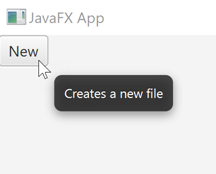
Here is a screenshot showing how the resulting Tooltip could look:
Text Alignment
You can set the text alignment of the text inside the Tooltip box via its setTextAlignment()
method. Here is an example of setting the text alignment of a Tooltip:
tooltip1.setTextAlignment(TextAlignment.LEFT);
The class javafx.scene.text.TextAlignment contains four different constants that represent different
kinds of text alignment. The four constants are:
LEFTRIGHTCENTERJUSTIFY
The first three constants represents the left, right and center justification of text within the popup box.
The last constant, JUSTIFY, will align the text with both the left and right edges of the popup box
by increasing the space in between the words to make the text fit.
Notice that setting the text alignment may not result in a visible effect on the text alignment. That is because
by default width of the popup box around the text is calculated based on the width of the text. If your text
is just a single line, the text will almost always appear centered within the popup box. Text alignment first
really takes effect when the popup box contains multiple lines of text, or if you set the width of the Tooltip
explicitly (manually).
Tooltip Graphics
You can set a graphic icon for a Tooltip via the setGraphic() method. Here is an example
of setting a graphic icon for a Tooltip :
tooltip1.setGraphic(new ImageView("file:iconmonstr-basketball-1-16.png"));
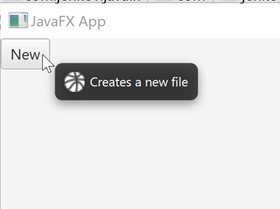
Here is an example screenshot illustrating how a Tooltip graphic could look:
| Tweet | |
Jakob Jenkov | |